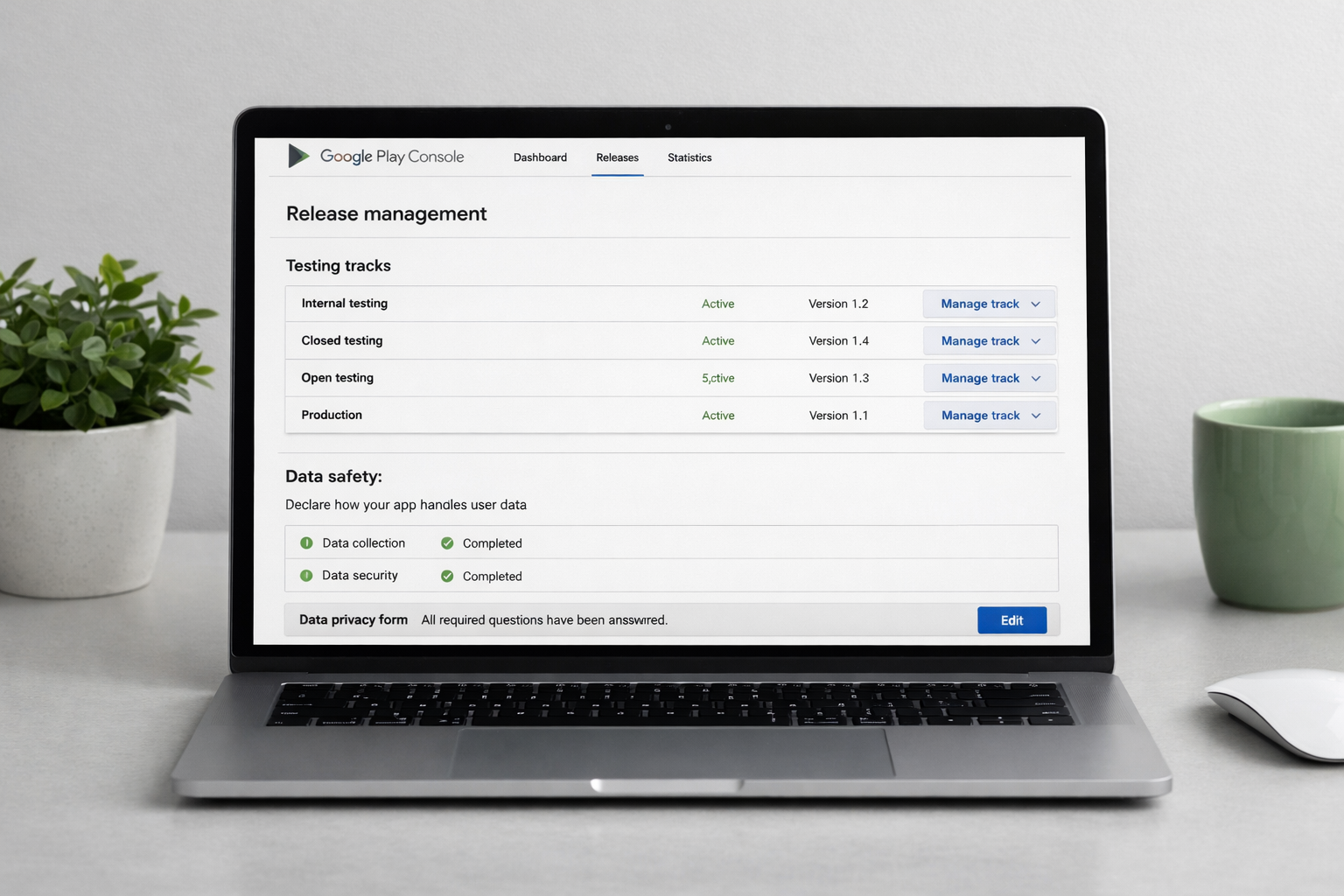
Create a Play Console account
Register at Google Play Console with a one-time $25 fee. You'll verify your identity and, for personal accounts created recently, provide additional details.
Choose whether you're a personal or organization developer — organizations need a D-U-N-S number and appear under a company name.
Create the app record
In the console, create a new app. Set the name, default language, whether it's an app or game, and whether it's free or paid — the free/paid choice is permanent.
Your application ID (package name) is fixed for the life of the app and must be unique on the store.
Set up signing and upload the AAB
Google Play requires the Android App Bundle (.aab), not an APK, for new apps. Enable Play App Signing so Google manages your signing key securely.
Build a signed release bundle and upload it to a testing track first, before you attempt production.
Complete the store listing
Provide a title, short description, full description, an app icon (512×512), a feature graphic (1024×500), and phone screenshots. Missing graphics block publishing.
Select a category and add contact details plus a privacy policy URL.
Fill in data safety and policy declarations
Complete the Data safety form — every data type collected, whether it's shared, and how it's protected. Then finish the content rating questionnaire, target audience, ads declaration, and any required permissions declarations (e.g. background location).
Inconsistent data-safety answers versus actual app behavior are a common enforcement issue — be accurate.
Run the testing tracks
Push builds through internal, closed, then open testing. Personal developer accounts must run closed testing with at least a set number of testers over a testing period before they can apply for production access.
Use this time to catch pre-launch report warnings — Google auto-tests your build on real devices and flags crashes and accessibility issues.
Release to production
Create a production release, add release notes, and roll out. New apps go through review that can take from a few hours to several days. Use a staged rollout (e.g. 20%) so you can halt if something breaks.
Once review clears and rollout reaches 100%, your app is live on Google Play.
← Also publish on iOS